
Capture it.
Find it.Use it.
Light Capture turns screenshots into searchable working files — organized in the folder you choose, enriched with OCR, and ready for the next task.
Wersja 2026.7.30.504
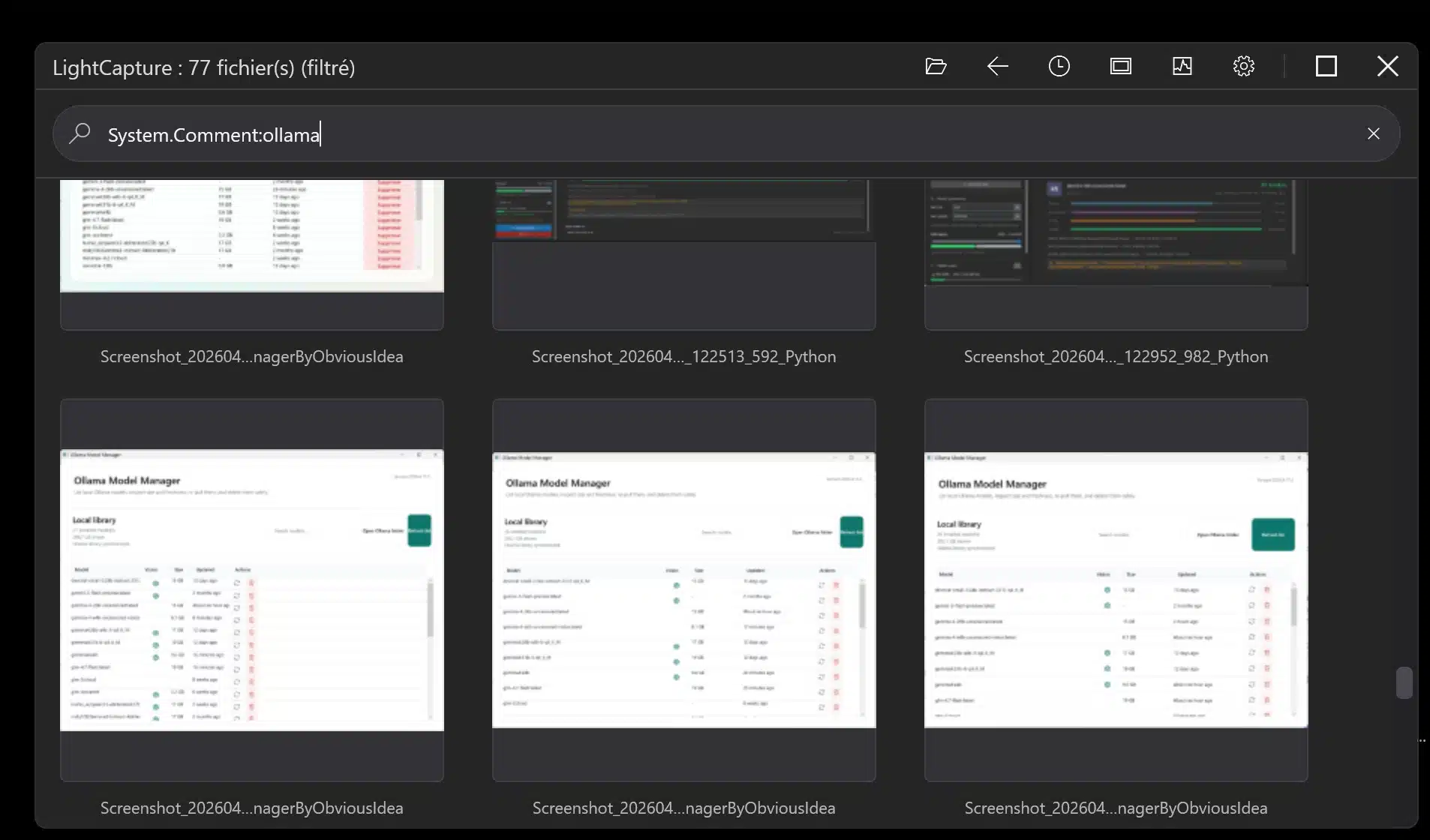
System.Comment:ollama.Zrzut ekranu to dopiero początek.
Capture tools save an image. Light Capture helps you keep the source, read the visible text, find the file again and continue the work.
From capture to a useful working file in four steps.
Capture
Screen, window, region or scrolling content.
Enrich
OCR, source application, comments and Windows metadata.
Find
Search by content, date, folder, file type or rating.
Act
Copy, print, annotate, batch-process or open in Explorer.
Built for work where context matters.
Choose the folder that already belongs to the case, job or project. Light Capture adds speed and searchability without creating another closed library.
01 / CASE WORK
Legal professionals & experts
Keep screenshots inside the case folder. Retrieve them by visible text, date, source or your own comments.
Light Capture organizes working files; it does not certify authenticity or replace an evidentiary protocol.
03 / SOFTWARE WORK
Developers, QA & wsparcia
Capture errors and UI states, then find them again by application, OCR text, date, comment or tag.
02 / FIELD WORK
Building, property & field teams
Collect plans, emails, quotes and site issues directly in the folder for each job or property.
04 / VISUAL ARCHIVES
Photographers & power users
Browse with large thumbnails, ratings and batch tools without opening a heavyweight catalog for every choice.
Search what the screenshot says — not just what you named it.
Windows OCR can place visible text in metadata. Light Capture then lets you combine content, date, folder, extension, title, comment, keyword, size, dimensions and rating with guided AQS suggestions.
invoice AND date:thismonthcomment:error OR comment:failfolder:client-a AND ext:.pngrating:>=4
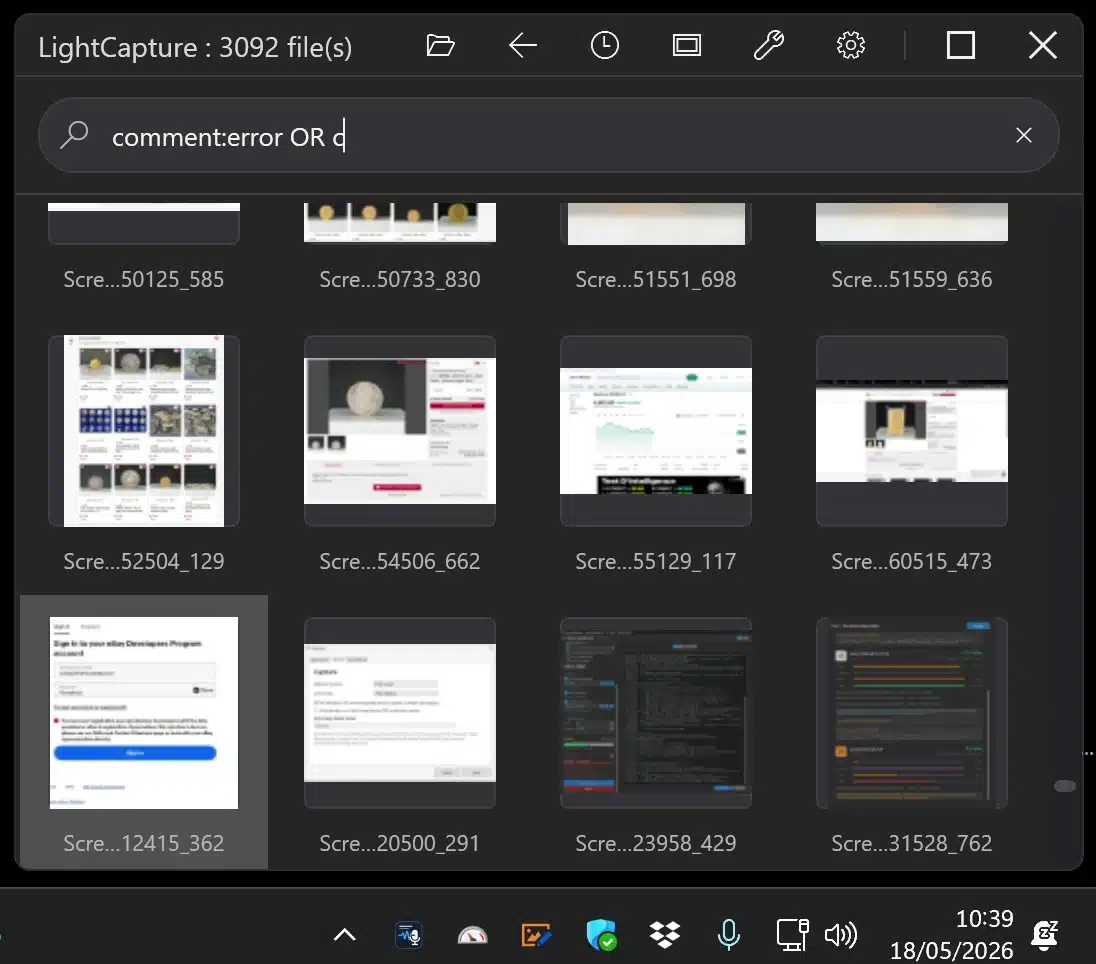
Guided AQS suggestions help build a precise query without memorizing every field.
Your screenshots stay your files.
Light Capture is local-first: the core workflow uses your Windows folders, Windows Search, Windows OCR and ordinary file metadata.
- Choose the case, job or project folder you already use.
- Core capture, OCR and search run on the Windows device.
- Optional Ollama processing goes only to the endpoint you configure.
Remote endpoints receive the content you choose to send. Instagram Pro is separate and is not exposed in the Microsoft Store edition.
Why not stop at Snipping Tool?
Snipping Tool is useful for an occasional capture. Light Capture is for the work that comes after it — especially when screenshots accumulate.
| Workflow capability | Light Capture | Narzędzie do cięcia |
|---|---|---|
| Capture a screen or region | ✓ | ✓ |
| Scrollable capture | ✓ | — |
| OCR stored as searchable metadata | ✓ | — |
| Guided AQS search | ✓ | — |
| Large-thumbnail archive browser | ✓ | — |
| Batch tools and Windows metadata | ✓ | — |
Practical answers before you download.
Can I keep using the Windows capture shortcut?
Yes. Light Capture supports customizable global shortcuts and can also monitor the folder used by the Windows capture workflow.
Does OCR require a cloud service?
No. Windows OCR runs locally when the matching OCR language is installed in Windows.
Can it process screenshots I already have?
Yes. Its browser, search and batch tools can work with existing image folders, not only files created by Light Capture.
Does Light Capture certify a screenshot as legal evidence?
No. It helps organize and retrieve working files. It does not timestamp, certify authenticity or replace a legal evidence-preservation procedure.
Make the next screenshot easy to find.
Download the current signed Windows installer and start with the folder you already use.
Wersja 2026.7.30.504 · Windows 10 & 11
Signed by ObviousIdea · Privacy details